
Send Sensor Readings and Switch an LED over MQTT with an ESP32
 By Austin SmallUpdated November 16, 2026
Send an ESP32's temperature and humidity readings to an MQTT broker every five seconds, and switch its LED on or off from your phone.
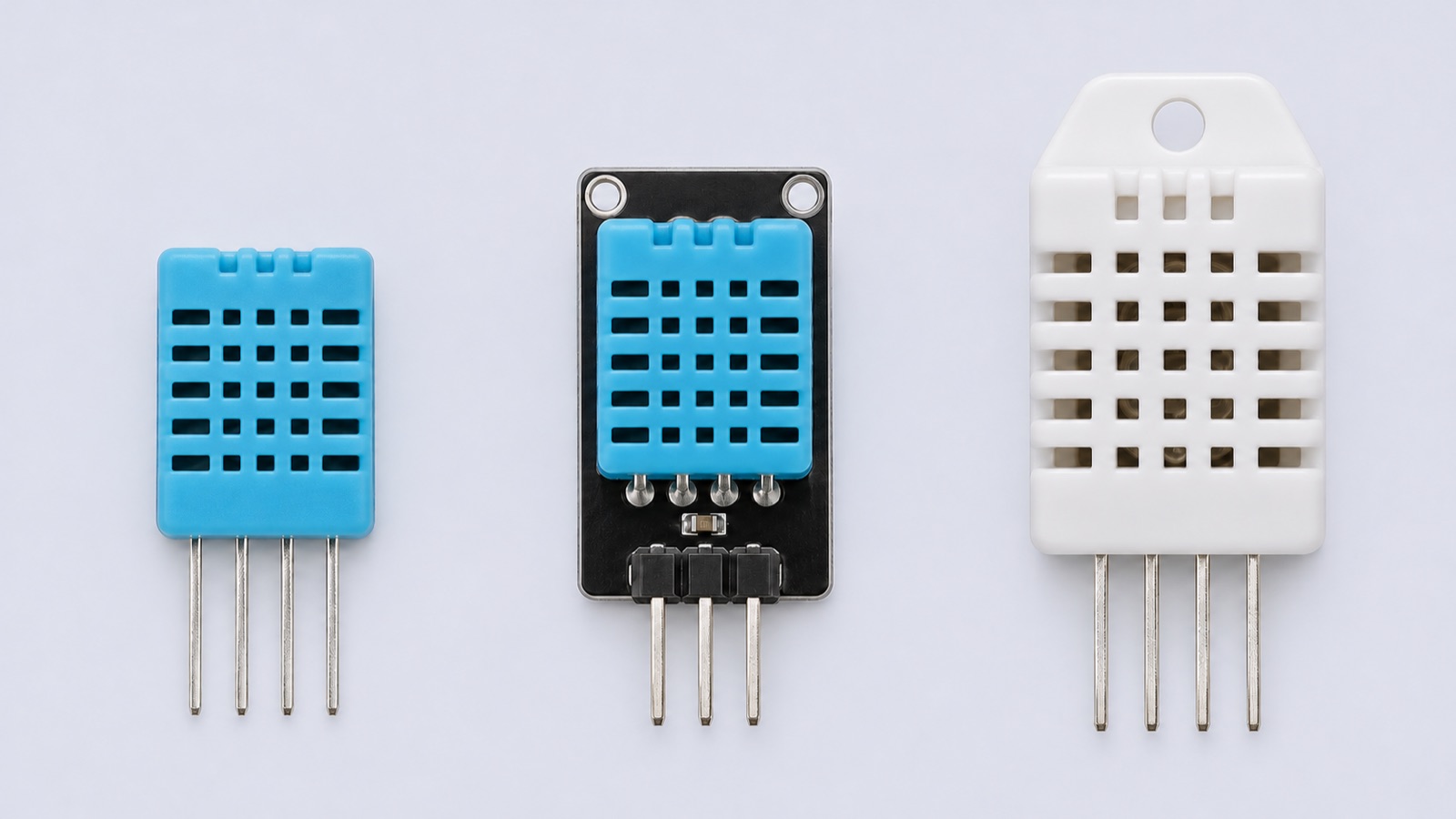
MQTT is how many connected devices talk. The ESP32 connects to a server called a broker and sends each reading to a named topic; your phone, or this page, connects to the same broker and gets them. You don't write an app: any MQTT app works. The sensor is a DHT22; the DHT11 vs DHT22 guide covers it.
Try it first, no parts needed
This is the whole project, running in your browser. Press Run simulation: the ESP32 joins Cirkit's simulated Wi-Fi and connects to a real MQTT broker on the internet, and this page joins the same broker as a second client. Move the temperature slider and watch the new value arrive; press On or Off and watch the LED.
In the simulation

The air around the DHT22
The sketch reads it every 5 seconds and sends it to the broker.
ESP32 serial monitor115200 baud
On the internet
ESP32 the board in the circuit
Online through Cirkit's servers, port 1883
MQTT broker a real server, run by Cirkit
mqtt.cirkitdesigner.com
- Passed on
- 0
- Round trip
- —
This page a second MQTT client, port 443
Joins when the simulation runs
- Temperature
- —
- Humidity
- —
- LED
- —
Any device on the broker can do the same: a phone app, a laptop, another ESP32.
Try it: set the temperature slider to 30 °C. The ESP32 sends every five seconds of simulated time; at its next send, 30.0 °C travels from the simulated ESP32 through the broker to this page.
Watch it from your own phone: run the circuit to get this run's channel.
Watch it from your own phone: in an MQTT app, connect to mqtt.cirkitdesigner.com on port 1883 and subscribe to . To switch the LED, publish on or off to . In a browser, HiveMQ's browser client works too: port 443 with SSL on.
What the code does
The sketch joins Wi-Fi, makes a random channel name, connects to the broker, then sends a reading every five seconds and listens for "on" and "off".
// ESP32 MQTT: send a DHT22's readings to a broker every 5 s,
// and switch an LED when an "on" or "off" message arrives.
#include <WiFi.h>
#include <PubSubClient.h>
#include <DHT.h>

// Your Wi-Fi. CirkitWifi is Cirkit's simulated network.
const char* WIFI_NAME = "CirkitWifi";
const char* WIFI_PASSWORD = "";
// Cirkit's public broker: anyone can read cirkit-learn/.
const char* BROKER = "mqtt.cirkitdesigner.com";
const int BROKER_PORT = 1883;

const int DHT_PIN = 4;
const int LED_PIN = 19;
// The DHT22 needs at least 2 s between readings.
const unsigned long SEND_EVERY_MS = 5000;

DHT dht(DHT_PIN, DHT22);
WiFiClient network;
PubSubClient mqtt(network);

String deviceId;  // random, so no other board uses it
String channel;   // cirkit-learn/<deviceId>
unsigned long lastSent = 0;

// A topic under this board's channel, like ".../led".
String topic(const char* name) {
  return channel + "/" + name;
}

const char* ledState() {
  if (digitalRead(LED_PIN) == HIGH) {
    return "on";
  }
  return "off";
}

void onMessage(char* name, byte* payload,
               unsigned int length) {
  String message;
  for (unsigned int i = 0; i < length; i++) {
    message += (char)payload[i];
  }
  if (message == "on") {
    digitalWrite(LED_PIN, HIGH);
  } else if (message == "off") {
    digitalWrite(LED_PIN, LOW);
  } else {
    return;
  }
  Serial.println("LED " + message);
  mqtt.publish(topic("led/state").c_str(), ledState());
}

void connectToWifi() {
  Serial.print("Connecting to ");
  Serial.println(WIFI_NAME);
  WiFi.begin(WIFI_NAME, WIFI_PASSWORD);
  while (WiFi.status() != WL_CONNECTED) {
    delay(250);
  }
  Serial.print("Wi-Fi connected, IP address ");
  Serial.println(WiFi.localIP());
}

void connectToBroker() {
  while (!mqtt.connected()) {
    Serial.print("Connecting to ");
    Serial.println(BROKER);
    String clientId = "cirkit-" + deviceId;
    if (mqtt.connect(clientId.c_str())) {
      Serial.println("Connected to the broker");
      mqtt.subscribe(topic("led").c_str());
      mqtt.publish(topic("led/state").c_str(), ledState());
    } else {
      Serial.print("Broker connection failed, state ");
      Serial.print(mqtt.state());
      Serial.println("; trying again in 5 s");
      delay(5000);
    }
  }
}

void setup() {
  Serial.begin(115200);
  pinMode(LED_PIN, OUTPUT);
  dht.begin();
  connectToWifi();

  // Random once Wi-Fi is on: the numbers come from the radio.
  char id[17];
  snprintf(id, sizeof(id), "%08lx%08lx",
           (unsigned long)esp_random(),
           (unsigned long)esp_random());
  deviceId = id;
  channel = "cirkit-learn/" + deviceId;
  Serial.println("Channel: " + channel);

  mqtt.setServer(BROKER, BROKER_PORT);
  mqtt.setCallback(onMessage);
}

void loop() {
  connectToBroker();
  mqtt.loop();  // sends keep-alives, delivers messages

  if (millis() - lastSent >= SEND_EVERY_MS) {
    lastSent = millis();
    float temperature = dht.readTemperature();
    float humidity = dht.readHumidity();
    if (isnan(temperature) || isnan(humidity)) {
      Serial.println("No reading from the DHT22");
      return;
    }
    String t = String(temperature, 1);
    String h = String(humidity, 1);
    mqtt.publish(topic("temperature").c_str(), t.c_str());
    mqtt.publish(topic("humidity").c_str(), h.c_str());
    Serial.println("Sent " + t + " C, " + h + " %");
  }
}const char* BROKER = "mqtt.cirkitdesigner.com";The broker and its port, 1883, MQTT's registered port for connections without encryption. Cirkit's broker is public: anyone can read and publish under
cirkit-learn/, so it suits readings, not anything private.snprintf(id, sizeof(id), "%08lx%08lx", (unsigned long)esp_random(), (unsigned long)esp_random());A random 16-character ID. The sketch makes it after joining Wi-Fi: with the radio on, the ESP32's hardware random number generator gives truly random numbers. The board's channel is
cirkit-learn/plus the ID; every topic it uses starts with it, so it doesn't collide with other boards on the broker.if (mqtt.connect(clientId.c_str())) { Serial.println("Connected to the broker"); mqtt.subscribe(topic("led").c_str()); mqtt.publish(topic("led/state").c_str(), ledState()); } else {Connects with a client ID made from the same digits; a broker drops an older connection when a new one uses the same ID. Then it subscribes to
…/led, where commands arrive. If the broker can't be reached, it prints why and tries again after five seconds.mqtt.loop(); // sends keep-alives, delivers messagesPubSubClient sends keep-alive pings and hands arriving messages to
onMessageonly from here, soloop()must reach it often while connected. That's why the readings are timed withmillis()rather thandelay().mqtt.publish(topic("temperature").c_str(), t.c_str());Every five seconds, one message to
…/temperatureand one to…/humidity, each the reading as text with one decimal. The DHT22 needs at least two seconds between readings.void onMessage(char* name, byte* payload, unsigned int length) {Runs for each message on
…/led: "on" or "off" switches GPIO 19, then the board answers on…/led/state, so whoever sent it knows it arrived.
How MQTT works
Here's what happens to one reading. No device sends to another directly; the broker passes each message on.
ESP32
publishes
<channel>/ 24.1
Broker
passes it to every client subscribed to a matching topic
This page
subscribed to <channel>/: gets it
Your phone
subscribed to <channel>/#: gets it
Another board
subscribed to <channel>/led: doesn't get it
A topic name, level by level (the channel is the first two)
cirkit-learnthe area this broker allows7f3a9c21e04b5d88this board's random IDtemperaturewhat the message is
Topic names are levels separated by /. A subscription can use two wildcards: + matches one level, and #, only at the end, matches any number. Subscribing to <channel>/#gets everything this board sends.
| Idea | What it means here |
|---|---|
| QoS 0 | "At most once": each reading is sent once, with no reply and no retry. A lost reading is replaced by the next. PubSubClient only publishes at QoS 0. |
| Keep-alive | The longest gap between a client's packets. If the broker hears nothing for 1.5 times that, it drops the client. PubSubClient's default is 15 seconds. |
| Retained message | A message the broker keeps and gives to anyone who subscribes later. This sketch doesn't use them, and Cirkit's broker refuses them. |
| WebSocket | A web page can't open a plain MQTT connection, so this page sends MQTT inside a WebSocket instead, to wss://mqtt.cirkitdesigner.com/. |
Build it
Now with real parts. Wire it, get the code and set your Wi-Fi, then upload it and follow it from your phone.
You'll need
- An ESP32 DevKitC (ESP32-WROOM-32) and a USB cable that carries data
- A DHT22 (AM2302) module with three pins
- A red LED and a 220 Ω resistor
- A breadboard and five jumper wires
- A 2.4 GHz Wi-Fi network with internet access, and a phone or computer with a web browser
- Software to upload the sketch: Cirkit Designer, free in your browser, or the Arduino IDE
Wire it
Power the DHT22 from 3V3: its DAT pin goes straight to GPIO 4, and the ESP32's pins aren't rated for 5 V. The LED goes on GPIO 19 through its resistor.
Tap a connection to see it on the circuit.
Pin Connect to the ESP32 Show DHT22 VCC (+) 3V3 Show DHT22 DAT (OUT) GPIO 4 Show DHT22 GND (−) GND Show LED long leg 220 Ω resistor, then GPIO 19 Show LED short leg GND Show Wire the DHT22 module by the labels printed on it. Modules order their three pins differently.
Get the code and set your Wi-Fi
I'm using:Steps 2 and 3 follow the tool you pick.
The project opens with the sketch and its libraries already in it, so there's nothing to install.
First add ESP32 boards: open Tools → Board → Boards Manager, search for esp32, and install esp32 by Espressif Systems. Then open the Library Manager (1), search for PubSubClient (2), and install the one by Nick O'Leary (3). Install DHT sensor library by Adafruit the same way; when it asks about dependencies, install them all.
Then copy the sketch into a new one:
Set your network: change
WIFI_NAMEandWIFI_PASSWORDat the top of the sketch to your Wi-Fi's.CirkitWifiis the network inside Cirkit's simulation; a real board can't see it. How the sketch works is in what the code does, above.Upload and check it
Plug in your ESP32. In Cirkit, open the Build tab, then Upload firmware: click Select Port and pick your ESP32, then Upload to Device. The first time, Cirkit asks you to install Cirkit Create Agent, a small desktop helper that lets it reach the board over USB. Then open Upload output and serial monitor and click Start Serial Monitor.
Show me where to click in Cirkit
 ESP32 MQTTDesignCodeSimulateBuildShare
Select a device port
Select the device port for uploading code and serial communications
COM4 (ESP32 Dev Module)- Open Build
- Choose Upload firmware
- Click Select Port
- Pick COM4 (ESP32 Dev Module)
- Click Upload to Device
- Open Upload output and serial monitor
- Click Start Serial Monitor
In the Arduino IDE, choose ESP32 Dev Module and its port from the board menu, press Upload, then open the Serial Monitor and set it to 115200 baud.
Show me where to click in the Arduino IDE
esp32_mqtt.ino// ESP32 MQTT: send a DHT22's readings to a broker every 5 s, // and switch an LED when an "on" or "off" message arrives. #include <WiFi.h> #include <PubSubClient.h> #include <DHT.h>
OutputSerial Monitor115200 baudCompiling sketch...
Uploading...
Connecting to HomeWiFi
Wi-Fi connected, IP address 192.168.1.42
Channel: cirkit-learn/7f3a9c21e04b5d88
Connecting to mqtt.cirkitdesigner.com
Connected to the broker
Sent 24.1 C, 48.0 %
Sent 24.1 C, 48.2 %
LED on
Done uploading.
- Click the board menu
- Pick ESP32 Dev Module on COM4
- Click Upload
- Wait for Done uploading
- Click Serial Monitor
- Check it is set to 115200 baud
Then follow it from your phone. Copy the channel the Serial Monitor prints (it changes every time the board starts). On your phone, open HiveMQ's browser client, which connects to any broker, or any MQTT app:
- Connect to
mqtt.cirkitdesigner.com: port 443 with SSL on in the browser client, which adds the path/mqttitself; port 1883 in most apps. - Subscribe to
<channel>/#. - Publish
onto<channel>/led, with retain off.
It works when:
- The Serial Monitor shows your network, the board's address, its channel and
Connected to the broker. - A
Sentline follows every five seconds, and the same readings arrive on your phone. - Publishing
onlights the LED, the Serial Monitor printsLED on, and your phone getsonon…/led/state.
Device SerialConnecting to HomeWiFiWi-Fi connected, IP address 192.168.1.42Channel: cirkit-learn/7f3a9c21e04b5d88Connecting to mqtt.cirkitdesigner.comConnected to the brokerSent 24.1 C, 48.0 %Sent 24.1 C, 48.2 %LED onOutputSerial MonitorConnecting to HomeWiFiWi-Fi connected, IP address 192.168.1.42Channel: cirkit-learn/7f3a9c21e04b5d88Connecting to mqtt.cirkitdesigner.comConnected to the brokerSent 24.1 C, 48.0 %Sent 24.1 C, 48.2 %LED onNot working? See troubleshooting.
Troubleshooting
Find what the Serial Monitor shows; the checks under it run from the most common cause down.
It stops at "Connecting to" your network
WIFI_NAMEandWIFI_PASSWORDare exactly your network's. Copy them rather than retyping.- The network is 2.4 GHz. The ESP32's Wi-Fi is 2.4 GHz only; if your router has separate 2.4 and 5 GHz networks, use the 2.4 GHz one.
- The network has no sign-in page. Networks that ask you to sign in in a browser (hotels, some schools) don't work: the sketch can't fill it in.
"Broker connection failed, state …"
- State -2: the board can reach the broker. It couldn't open a connection: check the broker's name in
BROKER, and that your network lets connections out to port 1883. - State -4: the broker answers in time. It didn't: the connection is too slow, or the broker is busy. The sketch tries again after five seconds.
- State 5: the broker accepts the board. It refused it: the broker wants a login (see use your own broker).
"No reading from the DHT22"
- DAT is on GPIO 4. Check the three wires against the wiring table.
- The DHT22 runs from 3V3, and VCC and GND aren't swapped. Go by the labels on the module.
The board says "Sent", but nothing arrives on my phone
- The phone is connected to the same broker,
mqtt.cirkitdesigner.com. - The channel is the current one. It changes every time the board starts: copy it again.
- The topic is exact. Topics are case-sensitive:
<channel>/#, with the slash.
The LED doesn't switch, and the board prints nothing
- The message is exactly
onoroff, lowercase, published to<channel>/led. - Retain is off. Cirkit's broker disconnects a client that publishes a retained message.
Nothing in the Serial Monitor
- The Serial Monitor is set to 115200 baud.
No port appears for the ESP32
- The cable carries data. The board's USB port carries its serial link as well as power, so a cable that only charges powers the board but shows no port.
- The board's USB-to-serial chip has its driver. Its name, such as CP210x, is printed on the chip near the USB socket. The driver usually installs itself; if no port appears, install it from the chip's maker (Silicon Labs for a CP210x).
The upload stops at "Connecting..." and says "Failed to connect"
- The board is in download mode. Hold BOOT, press and release EN (RST on some boards), then release BOOT, and upload again.
"PubSubClient.h": No such file or directory
Arduino IDE only
- PubSubClient is installed. Install the one by Nick O'Leary from the Library Manager, as in get the code.
Make it yours
Use your own broker
For anything private, use a broker that needs a login, on your own network or hosted. Change the broker's address, and pass the login when connecting:
const char* BROKER = "192.168.1.20";  // your broker
const int BROKER_PORT = 1883;

// in connectToBroker(), if it wants a login:
if (mqtt.connect(clientId.c_str(), "user", "password")) {
A login alone isn't encryption: on port 1883 the login and readings travel as plain text. Over the internet, use a broker's TLS port, 8883, with the ESP32's encrypting client, NetworkClientSecure, in place ofWiFiClient, given the broker's CA certificate with setCACert().
Send longer messages
PubSubClient's messages, topic and header included, are limited to 256 bytes by default. For a longer message, such as several readings in one JSON object, make room in setup():
mqtt.setBufferSize(512); // before connectingSend more readings
Add a topic per reading, like topic("pressure"), and publish it beside the others. A subscriber to<channel>/# gets it with no change.
FAQ
Is MQTT secure?
Not by itself. On port 1883 messages travel unencrypted, and a public broker lets anyone subscribe. For private data, use a broker with a login and TLS; see use your own broker.
What's the difference between QoS 0, 1 and 2?
QoS 1 delivers a message at least once, and QoS 2 exactly once; QoS 0, which this sketch uses, isat most once.
Can I use a broker on my own network, such as Mosquitto on a Raspberry Pi?
Yes, if it accepts plain MQTT on port 1883: change BROKER, and add the login if it needs one, as inuse your own broker. A broker that only accepts TLS needs the encrypting client too.
Can I send JSON?
Yes: publish the JSON text as the message. Keep it under PubSubClient's 256 bytes, or raise the limit as insend longer messages.
Why does the channel change every time?
So boards following this guide don't use the same topics on the same public broker. For your own project, a fixed name you choose works just as well.
Simulating ESP32 MQTT in Cirkit Designer
Cirkit runs the ESP32's real firmware: the same sketch, PubSubClient 2.8 and the ESP32's Wi-Fi stack. The board joins a simulated Wi-Fi network, CirkitWifi, with no password, and its connections go out to the internet through Cirkit's servers, so it reaches a real broker.
Cirkit's DHT22 reports exactly the temperature and humidity you set with the sliders, with no measurement error or lag, and refuses a reading taken less than two seconds after the last one, as its datasheet asks. Cirkit doesn't simulate radio signal strength or a crowded network, and timings, such as how long the round trip takes, depend on Cirkit's servers rather than your router.
References
- OASIS: MQTT Version 3.1.1
- PubSubClient 2.8 (Nick O'Leary)
- Adafruit DHT sensor library 1.4.6
- Espressif arduino-esp32 3.3.5: NetworkClientSecure
- Espressif: Random Number Generation
- Espressif: ESP32 Series datasheet
- Espressif: ESP32-DevKitC user guide
- Adafruit: DHT11, DHT22 and AM2302 Sensors (guide)
- Aosong AM2302 (DHT22) datasheet (hosted by Adafruit)